
Palettely Workbench Guide
Learn how to browse templates, generate pixel art, remix palettes, import images, edit the grid, and export production assets.
Last reviewed: May 23, 2026
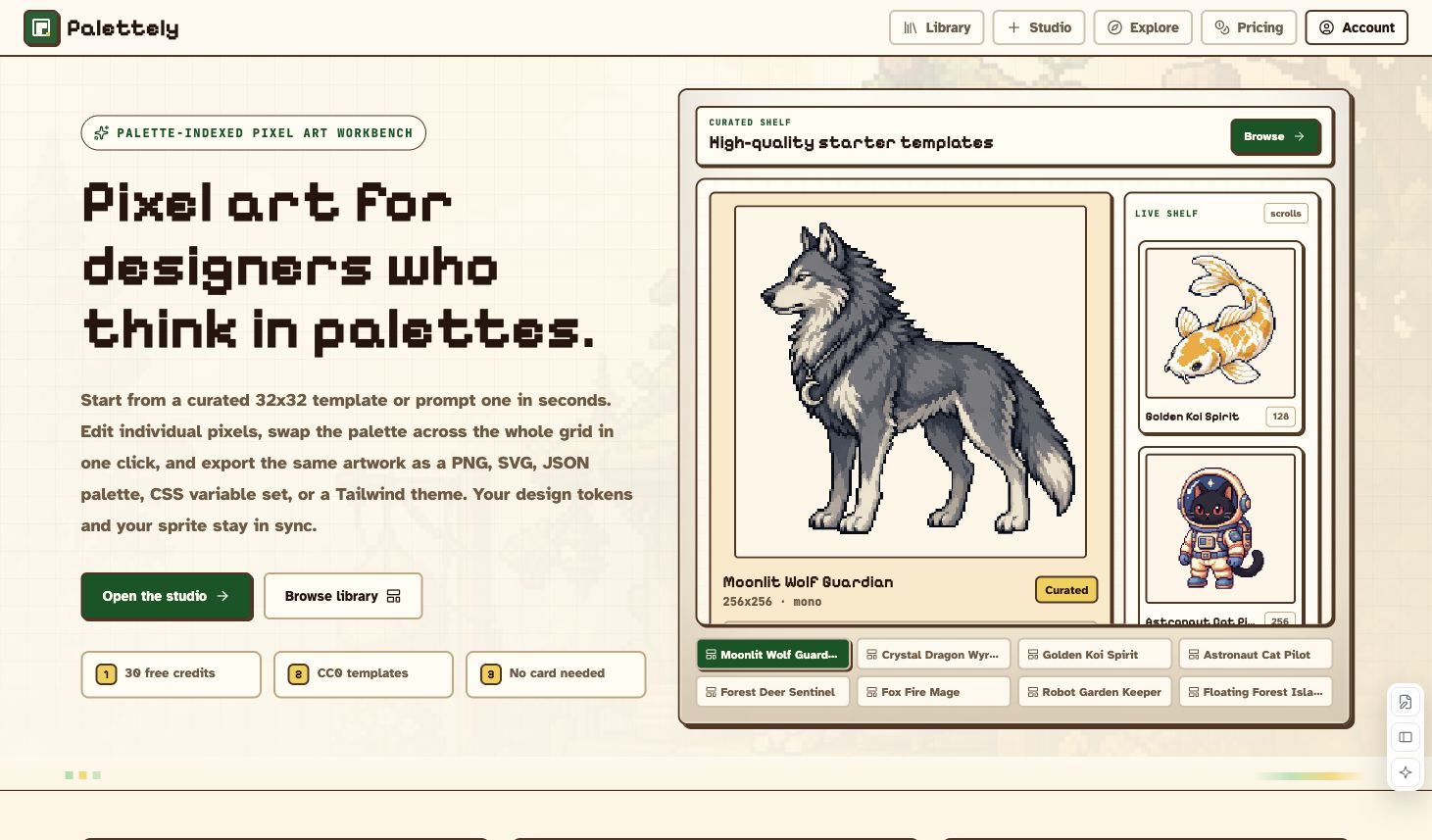
Palettely is a palette-indexed pixel art workbench. Start from a blank canvas, prompt an AI draft, import an image, or remix a curated template. The artwork stays editable as a grid of palette indexes, so you can repaint pixels, swap palettes, and export the same asset as PNG, SVG, JSON, CSS variables, or Tailwind tokens.
What Palettely Is
Palettely is not only a PNG generator. It is built around the split between the pixel grid and the palette:
- The grid stores color indexes, not fixed RGB pixels.
- The palette stores the actual colors used by those indexes.
- Changing a palette slot updates every pixel using that slot.
- Exports stay synchronized across image files and code tokens.
This makes Palettely useful for game assets, icons, avatars, tiny scenes, retro UI art, and frontend design systems that need the artwork and color tokens to stay in sync.
Quick Map
| Area | Use it for | Link |
|---|---|---|
| Library | Browse templates and palette variants | Open Library |
| Studio | Generate, import, edit, save, and export pixel art | Open Studio |
| Explore | Browse published community works | Open Explore |
| Palettes | Review built-in palettes and copy color values | Open Palettes |
| Pricing | Buy credits for AI generation | Open Pricing |
Free Editing And AI Credits
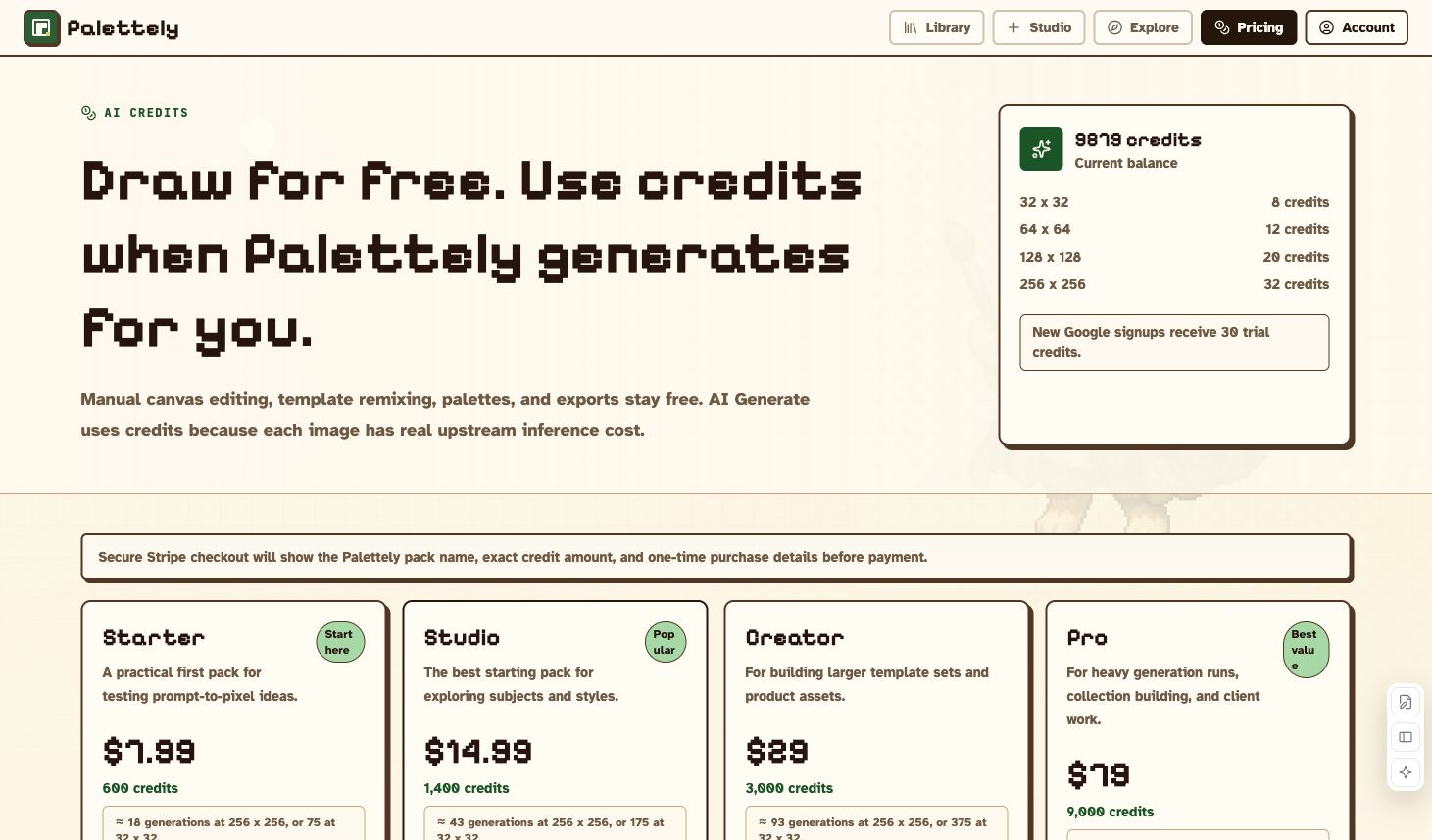
Manual editing, template remixing, palette changes, and exports are free. Credits are used when Palettely generates an AI image for you.
| Size | Typical Fast cost |
|---|---|
| 16 x 16 | 4 credits |
| 32 x 32 | 8 credits |
| 64 x 64 | 12 credits |
| 128 x 128 | 20 credits |
| 256 x 256 | 32 credits |
New Google signups receive trial credits. The Free plan includes 30 signup credits and room for 10 saved works. Paid subscriptions add monthly AI credits and larger saved-work limits. Top-up credits are still available for project spikes, do not expire, and are used after subscription credits. Failed generations are refunded automatically when the generation pipeline cannot return an image.
Browse The Library
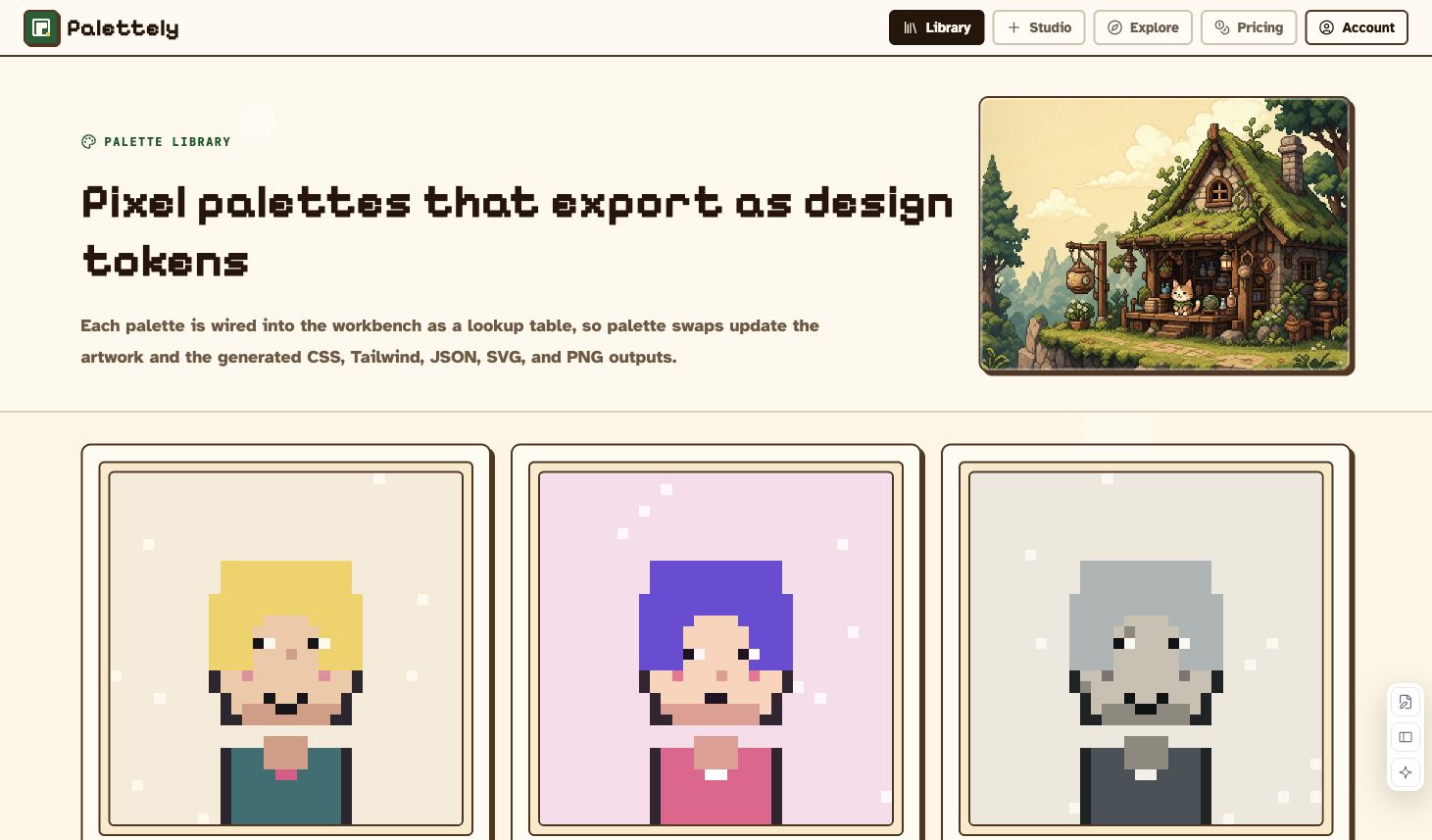
The Library is the fastest way to start from a known good composition. It combines templates and palette browsing so you can compare the same kind of sprite across sizes, subjects, and color styles.
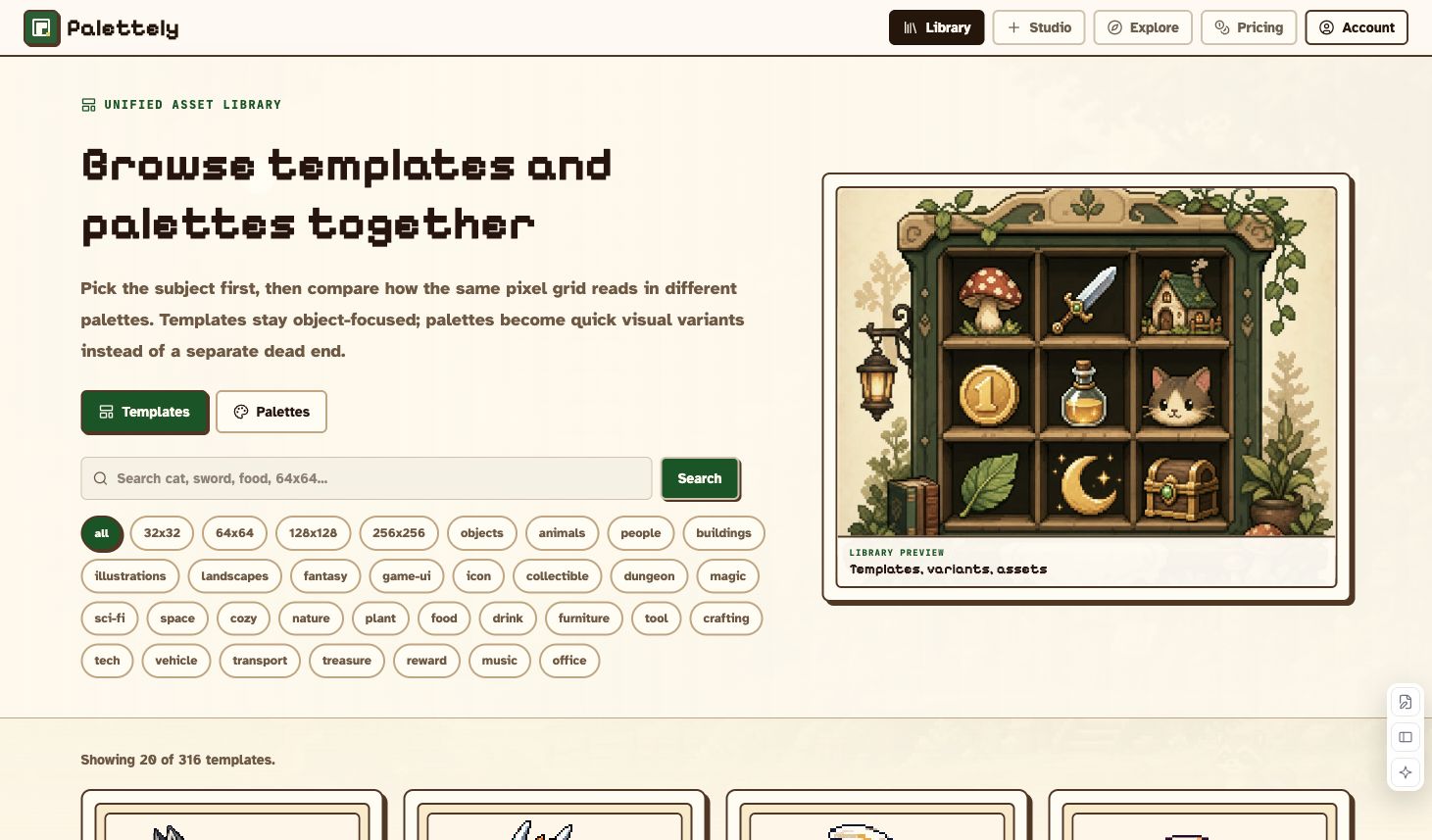
Use search when you already know the subject:
- Open Library.
- Search for a word such as
coin,sword,cat, or64x64. - Use size, category, and style chips to narrow the list.
- Choose Browse for details or Remix to open the template in Studio.
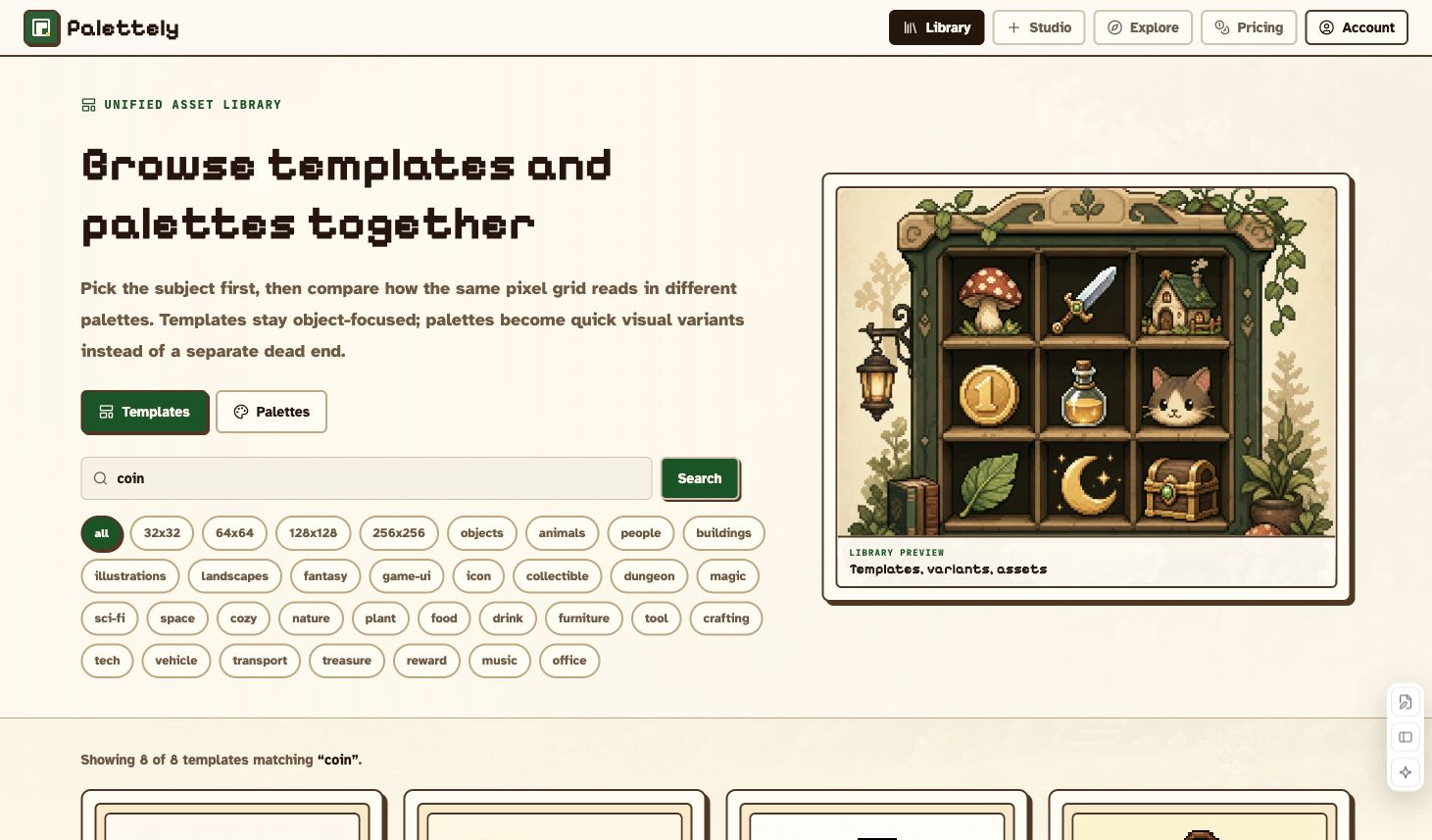
Template cards usually include the preview, size, palette, tags, and quick actions. High-quality templates are prioritized near the top of the default view.
Read A Template Detail Page
Template pages are useful when you want to inspect a sprite before editing it. They show the preview, dimensions, category, palette, color usage, related templates, and the Studio entry point.
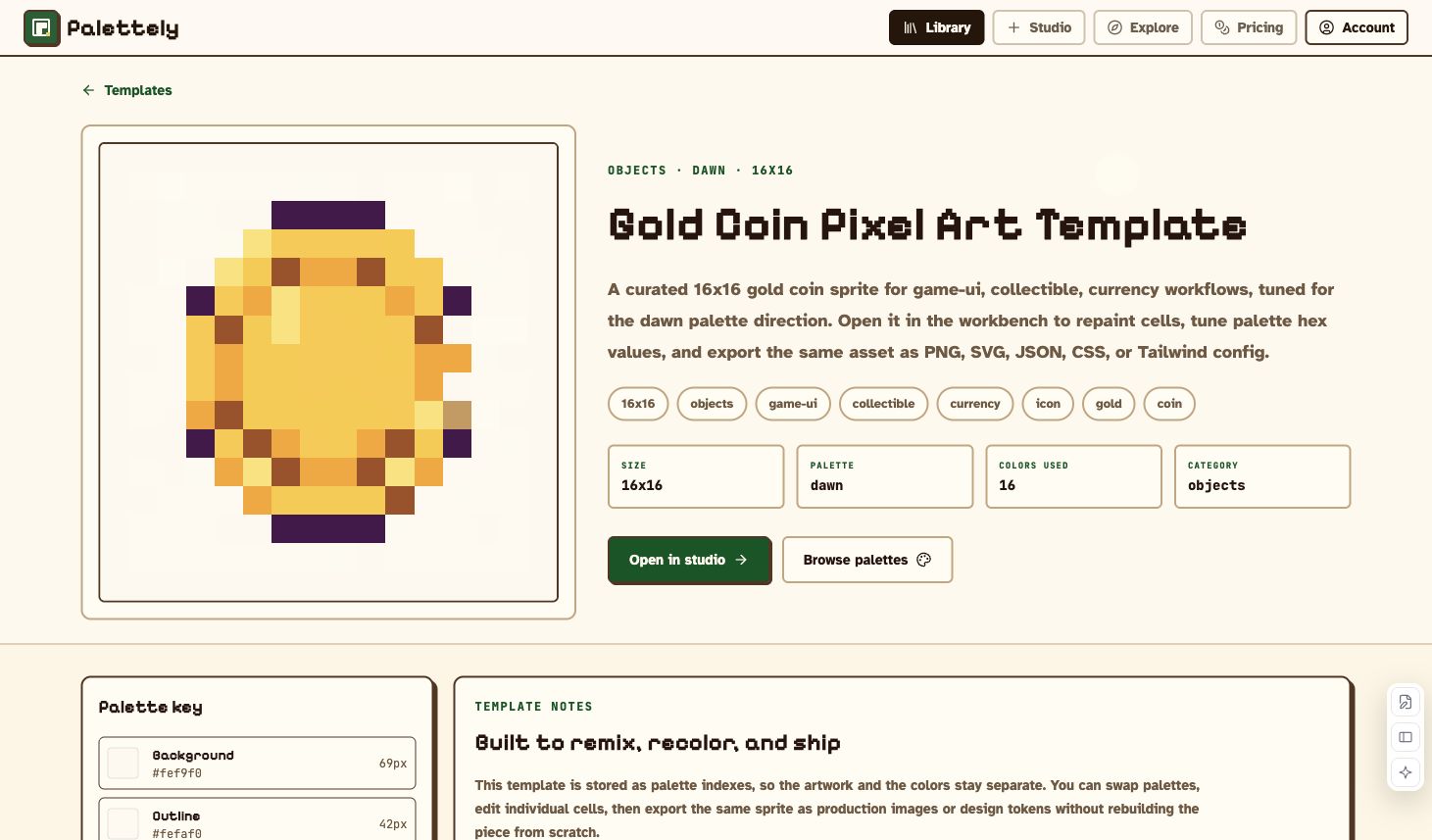
Use the detail page to:
- Check whether the size fits your project.
- Review the palette key and color usage.
- Understand the intended use case for the sprite.
- Open the asset in Studio for remixing and export.
Use Studio
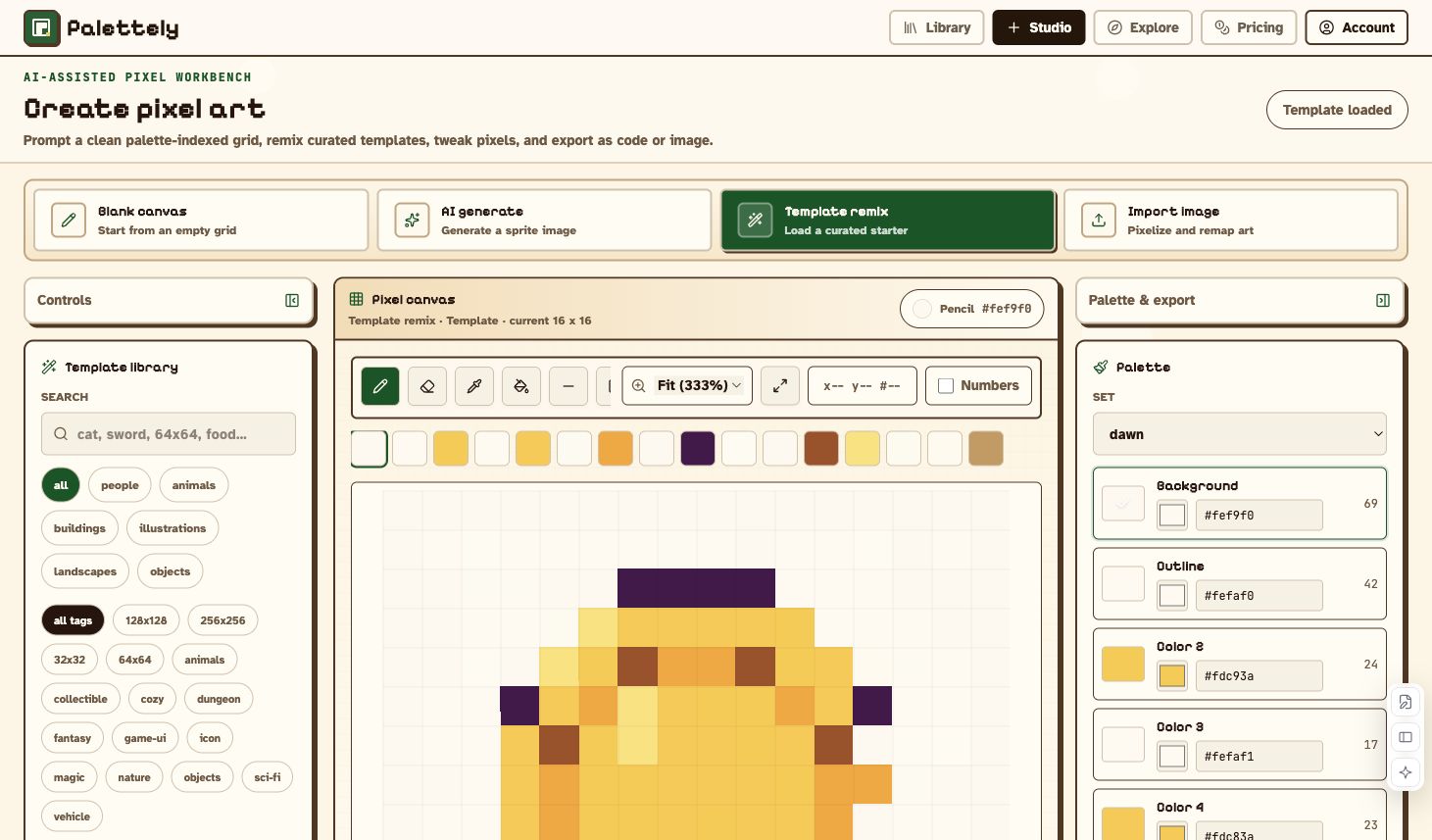
Studio is the main workbench. It has four entry points, a central canvas, palette controls, save controls, and export tools.
Blank Canvas
Blank canvas is best when you want full manual control. Choose a size, pick a palette, and start drawing.
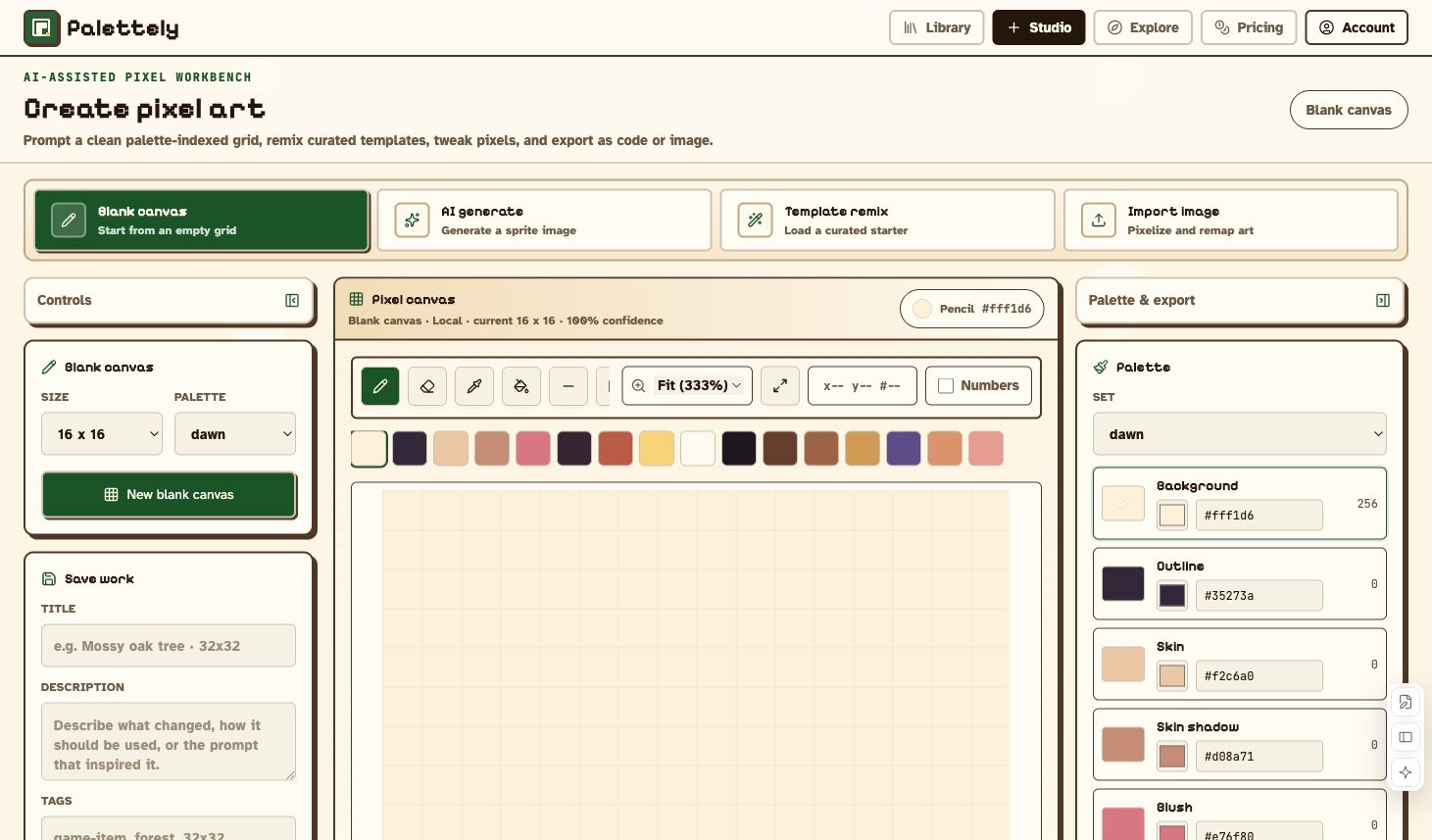
Supported sizes: 16, 24, 32, 48, 64, 128, and 256 square pixels.
Supported built-in palettes: tomodachi, bubblegum, mono, gameboy, pico8, forest, ocean, dawn, ember, and nes. You can also use a custom palette.
AI Generate
AI Generate creates an editable pixel grid from a prompt. It is useful for getting a first draft, then refining the result manually.
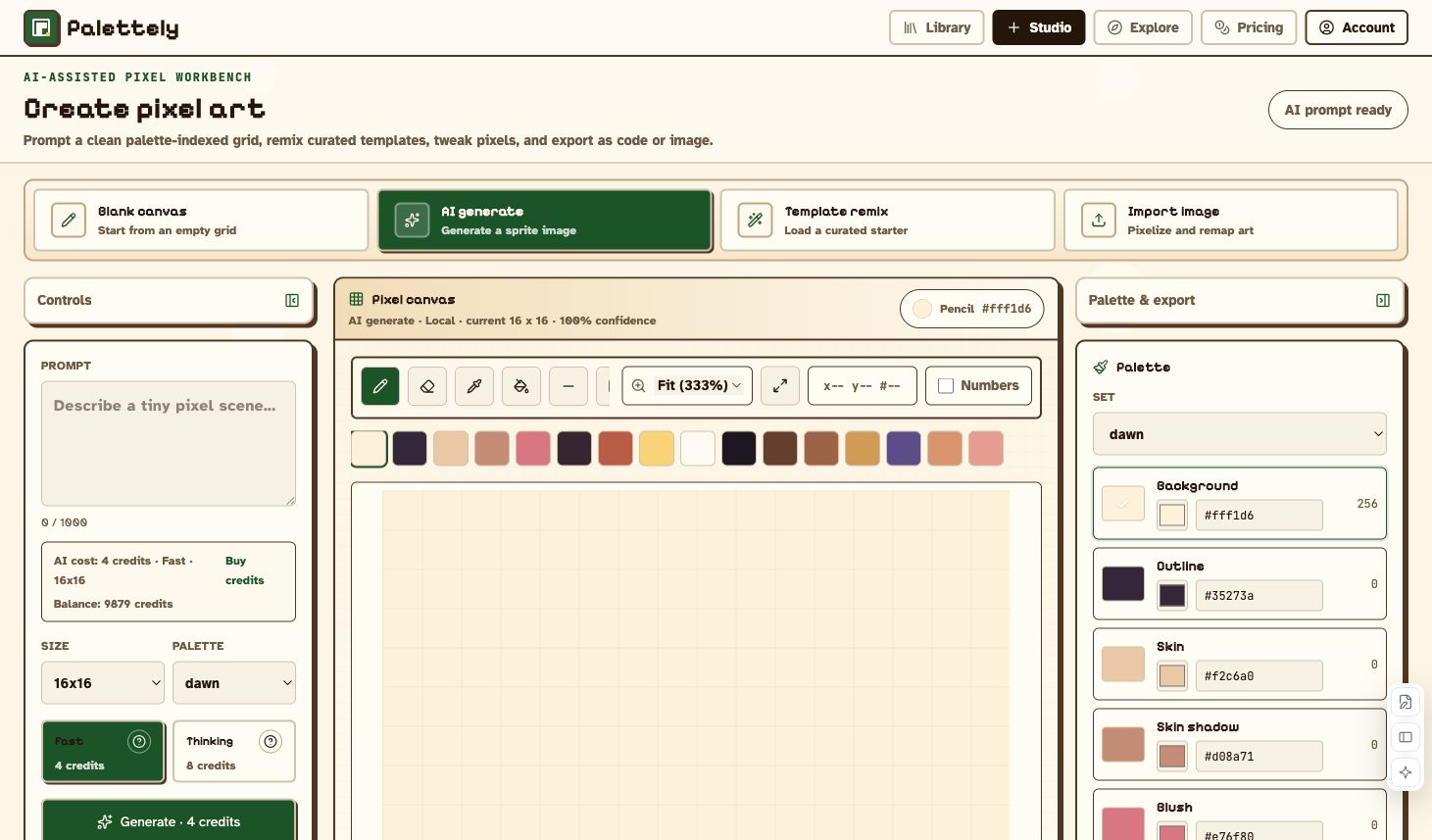
Recommended prompt structure:
single subject, readable silhouette, intended use, color moodExamples:
small blue sword, game item icon, simple silhouettecozy forest cabin, centered sprite, warm lightsblack cat with red eyes, sitting pose, clean outline
Use Fast when you need a quick draft. Use Thinking when quality matters more than speed.
Template Remix
Template remix loads an existing asset without calling the AI generation pipeline. It is the safest path when you need predictable structure and fast editing.
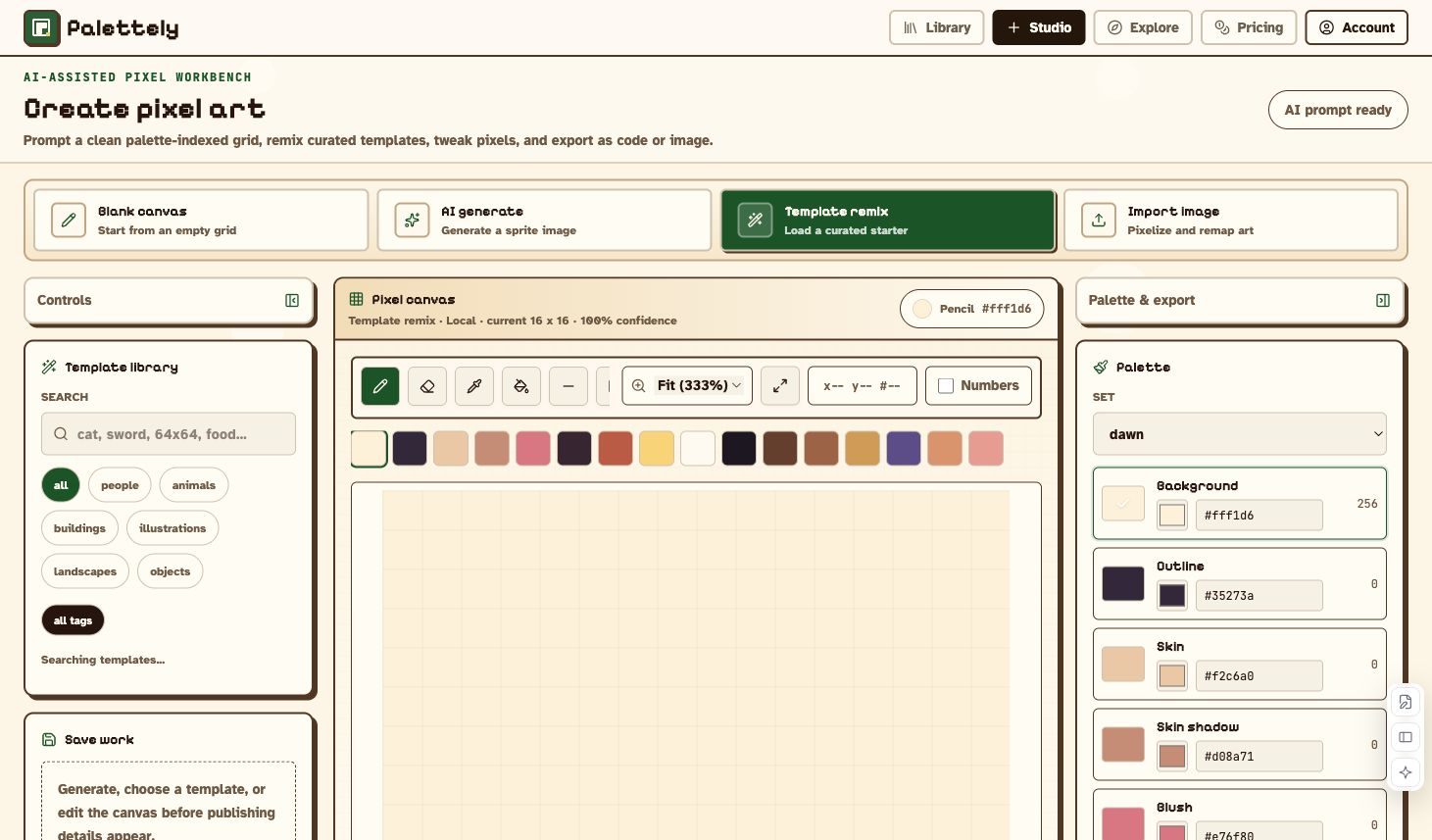
Typical flow:
- Choose Template remix.
- Search or filter templates.
- Load the template.
- Swap palette, edit pixels, or adjust hex colors.
- Export the result.
Import Image
Import image turns a PNG, JPG, or WebP into a palette-indexed sprite.
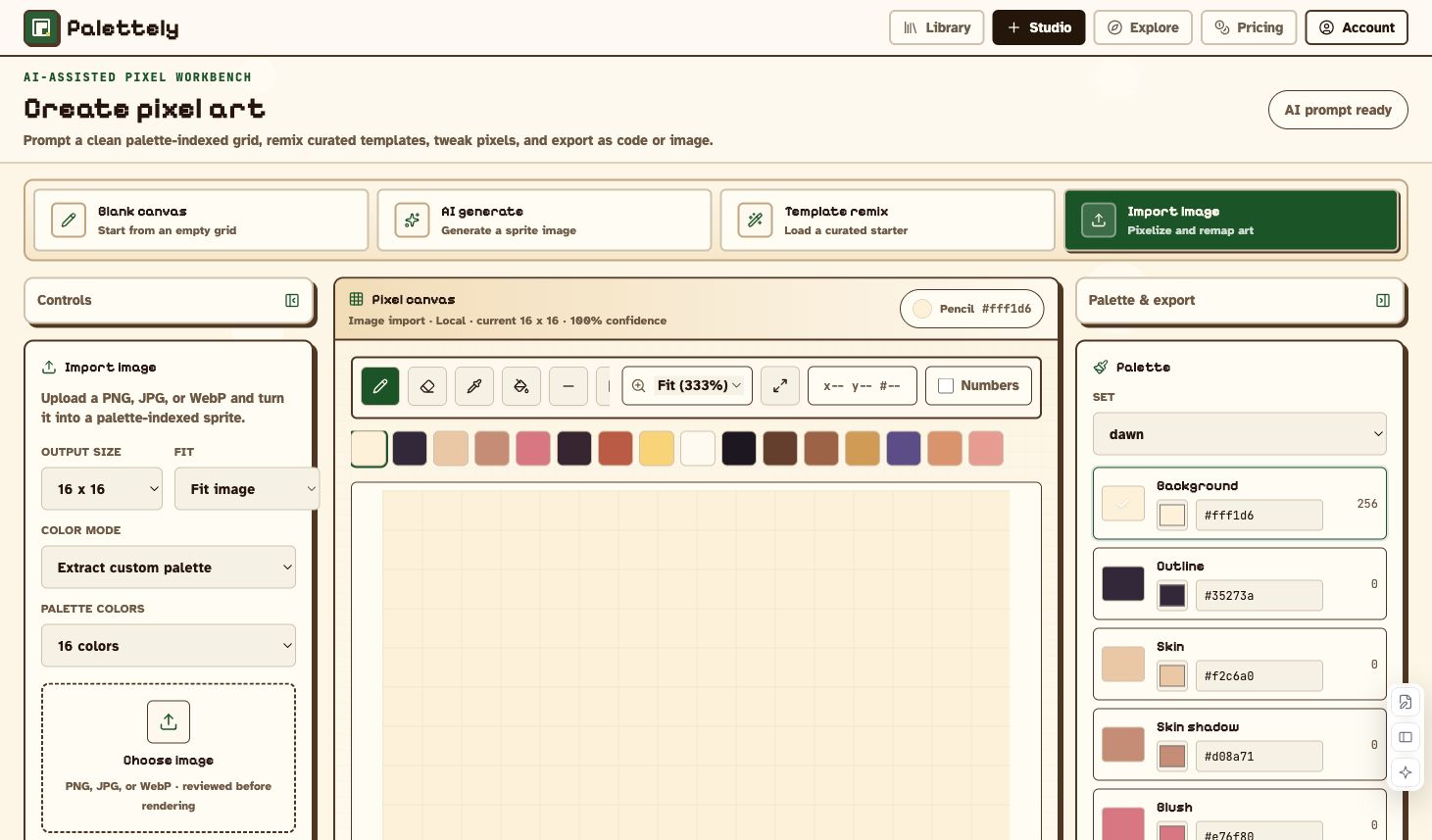
Import options:
| Setting | What it does |
|---|---|
| Output size | Converts the image to a fixed pixel grid size |
| Fit | Fits, crops, or stretches the source image |
| Color mode | Extracts a custom palette or maps to the current palette |
| Palette colors | Limits extracted palettes to 8, 16, or 32 colors |
For detailed logos and photos, start with 64 or 128. Use 256 only when the subject needs the extra space and your device can handle heavier editing.
Editing Tools
The canvas edits real palette indexes. That means every pixel points to a palette slot, and palette edits can update the whole artwork without repainting each cell.
Available tools:
- Pencil and eraser
- Eyedropper
- Fill
- Line, rectangle, and circle
- Selection and move
- Hand / pan
- Undo and redo
- Flip horizontal and vertical
- Rotate 90 degrees
- Fullscreen canvas
- Smooth zoom and fit-to-view
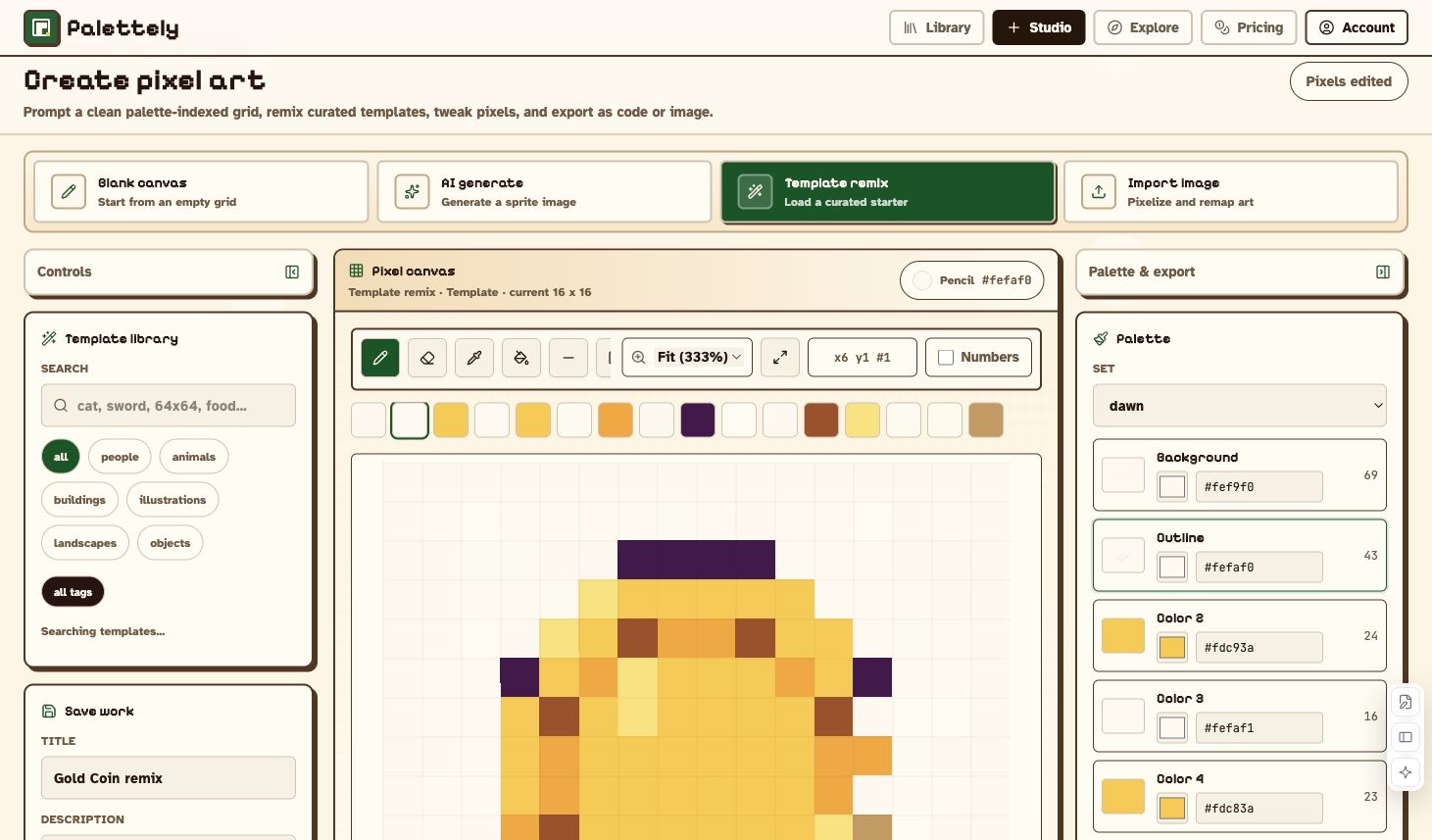
Brush size supports 1px, 2px, 3px, and 4px. The Numbers toggle shows palette indexes inside the grid, which is useful when checking JSON output or debugging palette remaps.
Palette Editing
The palette panel shows the active palette and color slots. Click a color to paint with it, edit the hex value to update that slot, or switch to another built-in palette to preview a different style.
Good palette habits:
- Keep important outlines in a stable dark slot.
- Use fewer colors for icons and UI assets.
- Use 16 to 32 colors for readable sprites.
- Use 64-color templates when the subject needs richer shading, then avoid repeated palette remaps if you need exact restoration.
Export Production Assets
Palettely can export the same grid in several formats:
| Format | Best for |
|---|---|
| PNG | Games, websites, docs, social previews |
| SVG | Scalable pixel art with crisp edges |
| JSON | Game engines, custom renderers, tools |
| CSS variables | Frontend themes and design systems |
| Tailwind config | Tailwind projects that need shared palette tokens |
Export settings include filename, scale, and background mode. Use transparent background for sprites that need to sit on game maps or UI surfaces.
Save, Publish, And Explore
Signed-in users can save drafts, publish public works, like works, collect works, and revisit their own library.
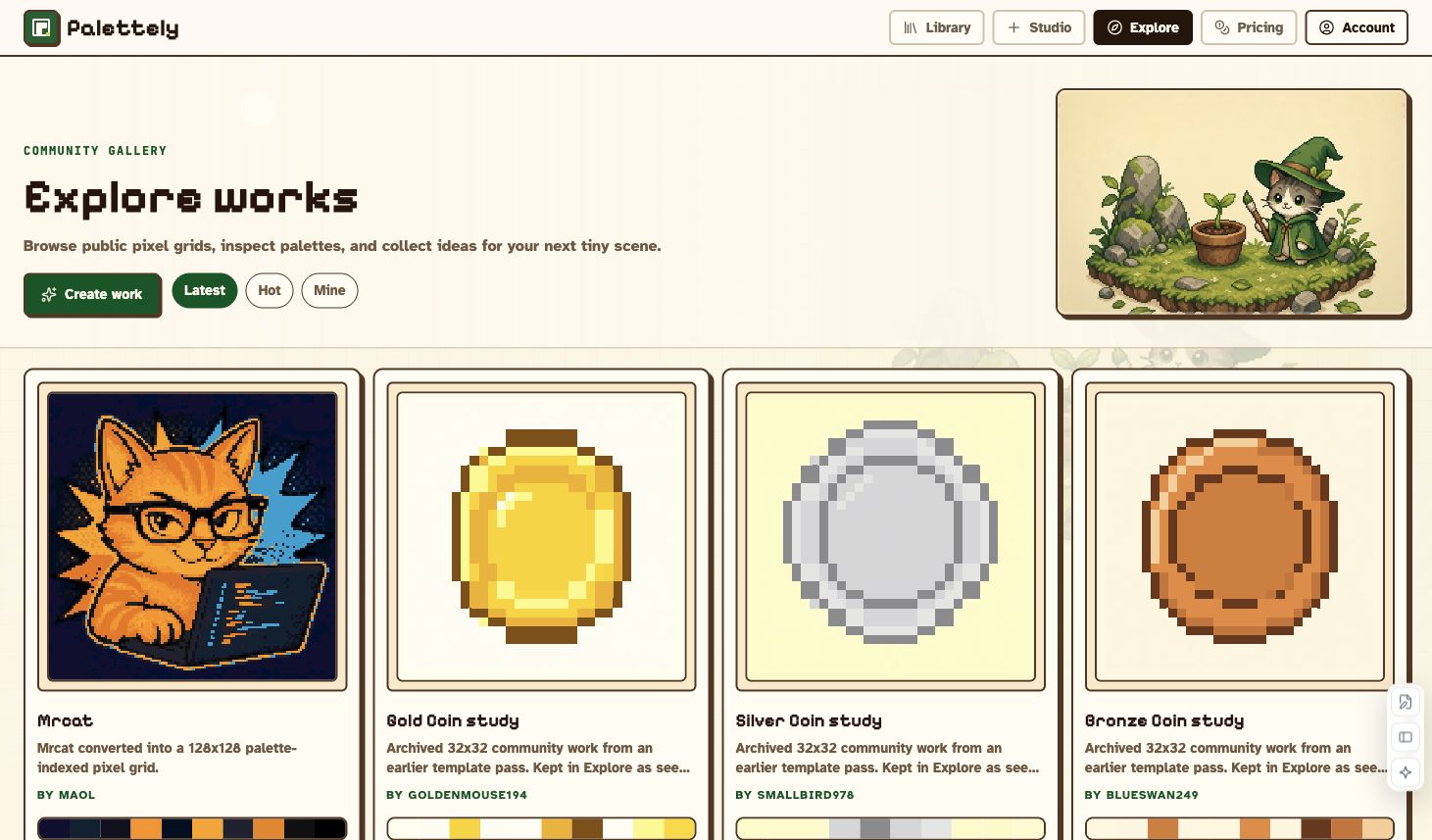
Drafts stay private. Published works appear in Explore and can be opened by other users. Your own works open back into Studio for editing.
Recommended Workflows
Make A Production Sprite From A Template
- Open Library.
- Search for a subject or size.
- Open a template detail page.
- Click Open in Studio or Remix.
- Swap palette or edit hex values.
- Refine pixels with pencil, fill, and shape tools.
- Export PNG, SVG, JSON, CSS, or Tailwind.
Generate A Draft With AI
- Open Studio.
- Choose AI generate.
- Write a concrete prompt.
- Choose size, palette, and quality mode.
- Generate the image.
- Fix silhouette, contrast, and stray pixels manually.
- Save or export.
Convert An Uploaded Image
- Choose Import image.
- Pick output size and fit behavior.
- Extract a custom palette or map to the current palette.
- Upload the file.
- Clean up the result with manual tools.
- Export or save.
Export Design Tokens For A Frontend
- Build or remix the sprite.
- Tune the palette to match your product colors.
- Export CSS variables or Tailwind config.
- Use the same colors in your UI and your sprite.
FAQ
Can I use Palettely without signing in?
Yes. Browsing, manual editing, template remixing, palette changes, and exports can be used without a signup wall. Account features such as saved works, publishing, and credits require sign-in.
Which actions spend credits?
AI Generate spends credits after a successful image result. Manual editing, templates, palette changes, and exports do not spend credits.
Which export should I choose?
Use PNG for normal image use, SVG for scalable crisp art, JSON for engines or tools, CSS for design tokens, and Tailwind when your app already uses Tailwind.
Why does palette-indexing matter?
Palette-indexing keeps the artwork structure and colors separate. You can preserve the same pixel composition while changing the palette, then export both artwork and code from one source of truth.